
Tired of scattered conversations, lost files and minimal oversight wreaking havoc on projects? Team collaboration apps give teams a single place to communicate, coordinate tasks and share work, reducing the chaos that comes from splitting workflows across too many tools.
If your team is bouncing between tools just to keep projects moving, it’s not a workflow problem — it’s a systems problem.
These collaboration apps for teams bring communication, project coordination and file sharing into one place, cutting down the friction that comes from juggling disconnected tools. Whether your team is remote or on-site, the right setup keeps work moving without constant handoffs and confusion — from task management and content planning to meetings, document editing, workflow visualization and cross-department coordination.
Go further, faster with the right collaboration software.
Notion – Best flexible workspace for notes, docs, databases and tasks
Rating: ⭐⭐⭐⭐½ — Lightweight documentation meets flexible task management
Overview:
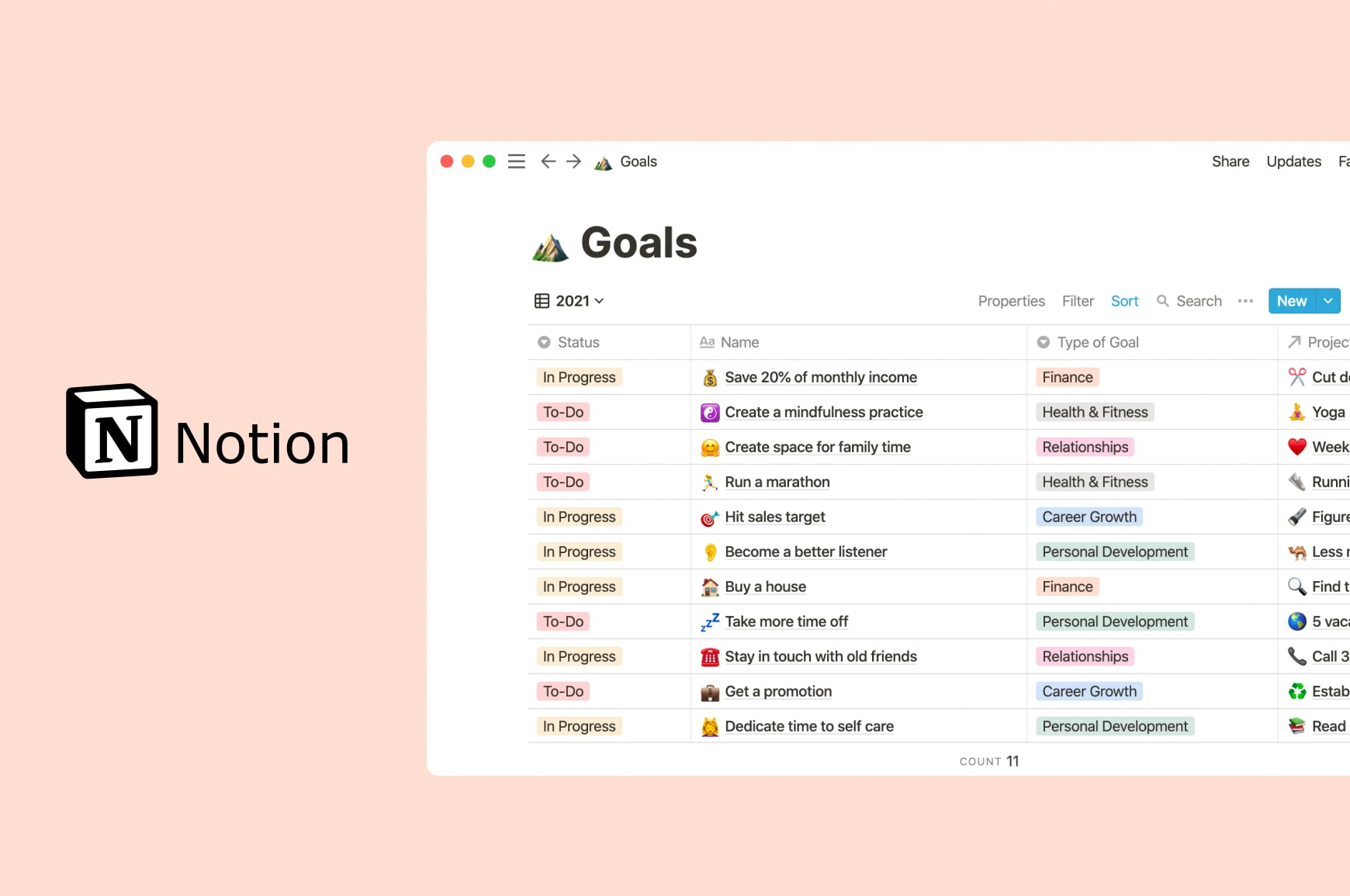
Notion combines documents, notes, task boards, wikis and databases in one flexible workspace, making it one of the most versatile team collaboration apps available. Teams use it to take notes, write documentation, track projects and centralize knowledge across departments.
Its block-based editor supports custom layouts, templates and embedded content, making it easy to adapt Notion to any team’s workflow. Notion is particularly suited for teams building internal knowledge bases or lightweight project management systems.
It also integrates well with other tools and can be used as a project management platform itself to help teams plan and execute work while increasing clarity across tasks. Notion AI speeds up content creation, automates documentation and summarizes large amounts of information, acting as a contextual writing and knowledge assistant.
Price: Free plan available; paid plans start at $10 per user/month
Standout strength: Flexible documentation and task tracking in a single workspace
| Pros | Cons |
|---|---|
| Highly customizable workspace | Complex setups need templates |
| Great for internal knowledge | Heavy pages may load slowly |
| Clean, intuitive interface | Less effective for managing large, complex project workflows |
Slack — Best team communication app for structured messaging
Rating: ⭐⭐⭐⭐½ — Real-time messaging for fast, organized communication
Overview:
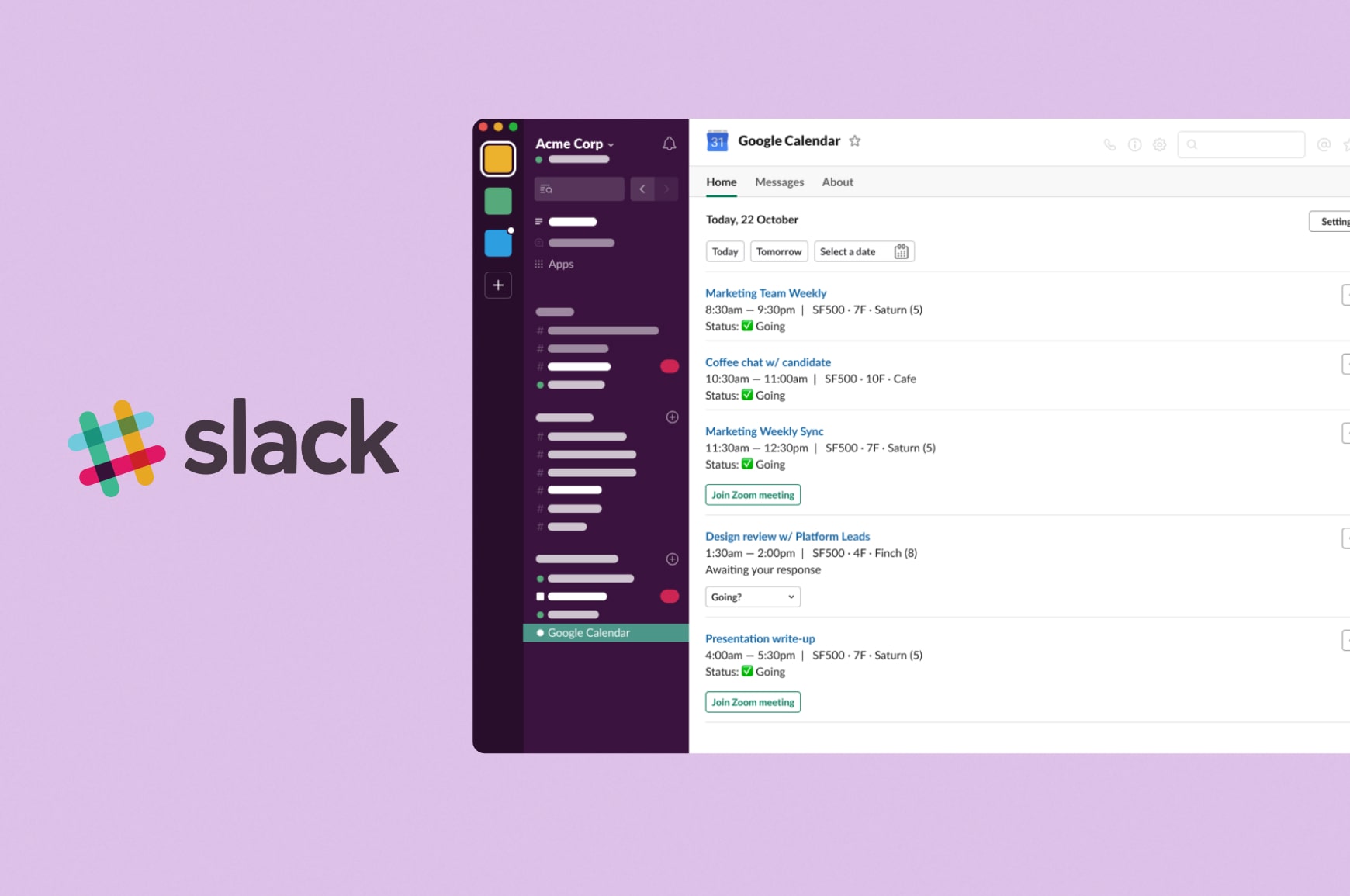
Slack helps teams of all sizes communicate through direct messages, channels and threads, reducing the need for long email chains. It supports file sharing, quick Huddles for video calls and a wide ecosystem of third-party integrations.
It streamlines day-to-day communication, organizes projects by channel and reduces context switching. Powerful search tools make it easy to find past conversations and shared documents, helping teams stay aligned across projects. AI summaries with transcripts, key takeaways and action items are a helpful addition.
Available on desktop and mobile, Slack works well with a wide range of collaboration tools, including project management software like Trello and cloud-based file systems like Google Drive, making it flexible enough for most workflows.
Price: Free plan available; paid plans start at $8.75 per user/month
Standout strength: Deep integrations and structured, channel-based communication
| Pros | Cons |
|---|---|
| Creating channels allows for easy organization | Can get noisy without clear communication guidelines |
| Strong ecosystem of third-party tools | Limited built-in task management |
| Fast search and message history | AI summaries not available in the free plan |
🎬 Learn what Slickplan can do!
We filmed a short video to show you exactly how to use Slickplan
Microsoft Teams — Best collaboration platform for Microsoft 365 users
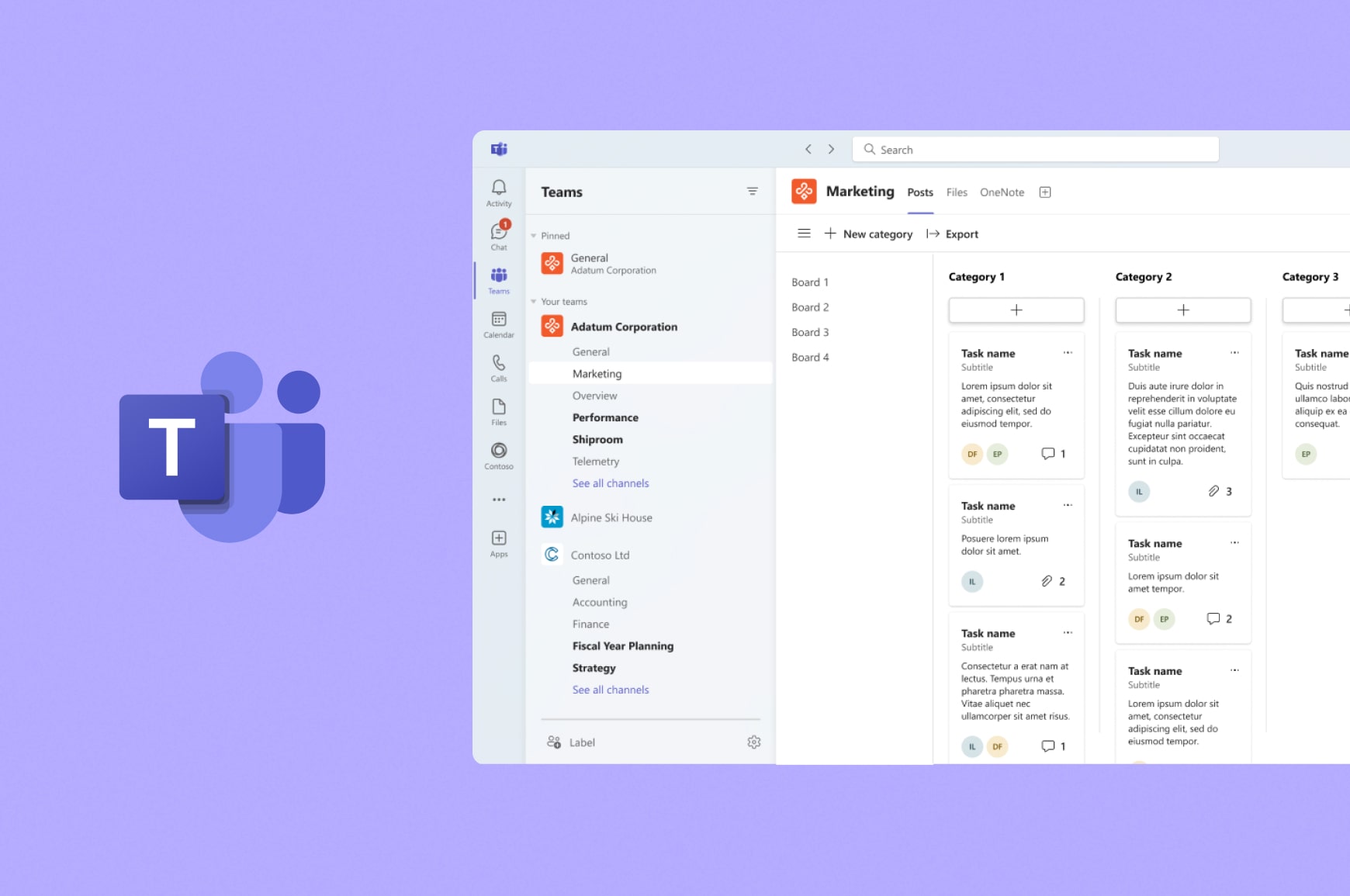
Rating: ⭐⭐⭐⭐ — Communication, meetings and documents in one hub
Overview:
Microsoft Teams combines team chat, video meetings, file sharing and Microsoft 365 apps in a single workspace. For organizations already using Outlook, Word, Excel or SharePoint, bringing everything into one collaboration hub boosts productivity and efficiency.
Built-in scheduling, meeting recording and screen sharing make it effective for remote and hybrid teams. Integration with Microsoft apps streamlines communication and helps teams manage tasks, files and people in one place.
Teams is also well-suited for workplaces that prioritize compliance, governance and enterprise-level security. With Copilot AI, Teams becomes a complete collaboration hub for Microsoft users.
Price: Included with Microsoft 365; standalone plans start at $4 per user/month
Standout strength: Automatic integration with the full Microsoft Office suite
| Pros | Cons |
|---|---|
| Unified messaging, meetings and file sharing | Essentials plan only includes Teams; upgrading to Business Basics is required for Office access |
| Strong security and compliance | Not ideal for teams that aren’t Microsoft-centric |
| Built-in Office app integration | Copilot AI is a paid add-on |
Asana — Best for structured project and task management
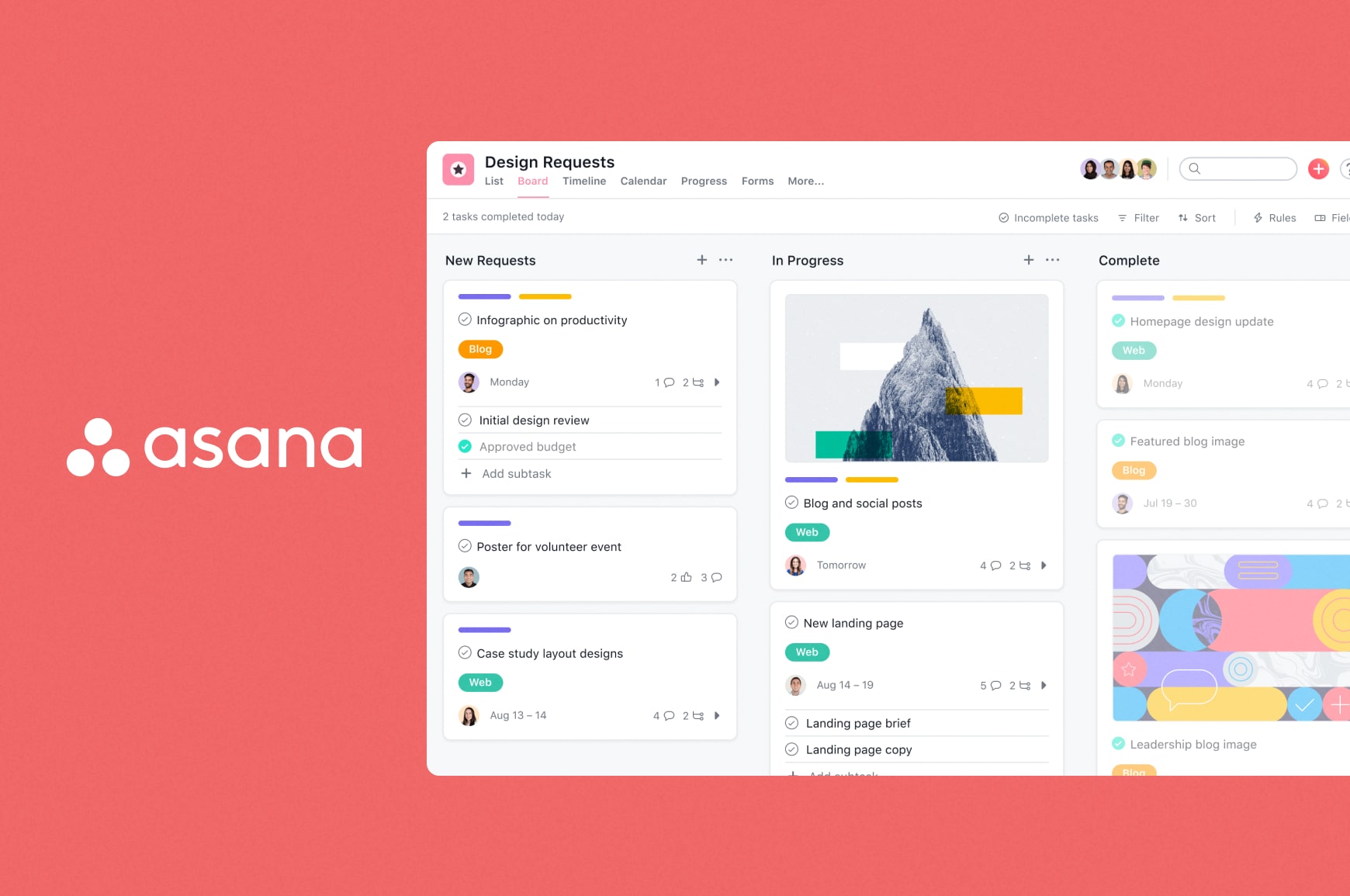
Rating: ⭐⭐⭐⭐½ — Organized project management for teams managing multiple workflows
Overview:
Asana helps teams organize tasks, projects and deadlines using Kanban boards, lists, calendars, timelines and Gantt charts. Whichever way you prefer to visualize a project, Asana makes it easy to break down work, assign tasks, track progress and manage multiple projects at once.
Features like custom fields, automations, task dependencies and workload views help teams coordinate responsibilities and monitor employee productivity. Asana is especially effective for teams that need clear task hierarchies and predictable workflows, with task templates that speed up setup for frequently repeated activities.
It integrates with other collaboration platforms, giving teams flexibility to use familiar tools while improving overall workflows.
Price: Free plan available; paid plans start at $10.99 per user/month
Standout strength: Clear visibility into projects, deadlines and responsibilities
| Pros | Cons |
|---|---|
| Great for organizing and structuring tasks | Overkill for simple project management |
| Multiple project views to fit different team workflows | Timeline and Gantt view not available in the free plan |
| Strong automation options | No built-in real-time meetings tools |
Monday.com — Best customizable workspace for managing multiple projects
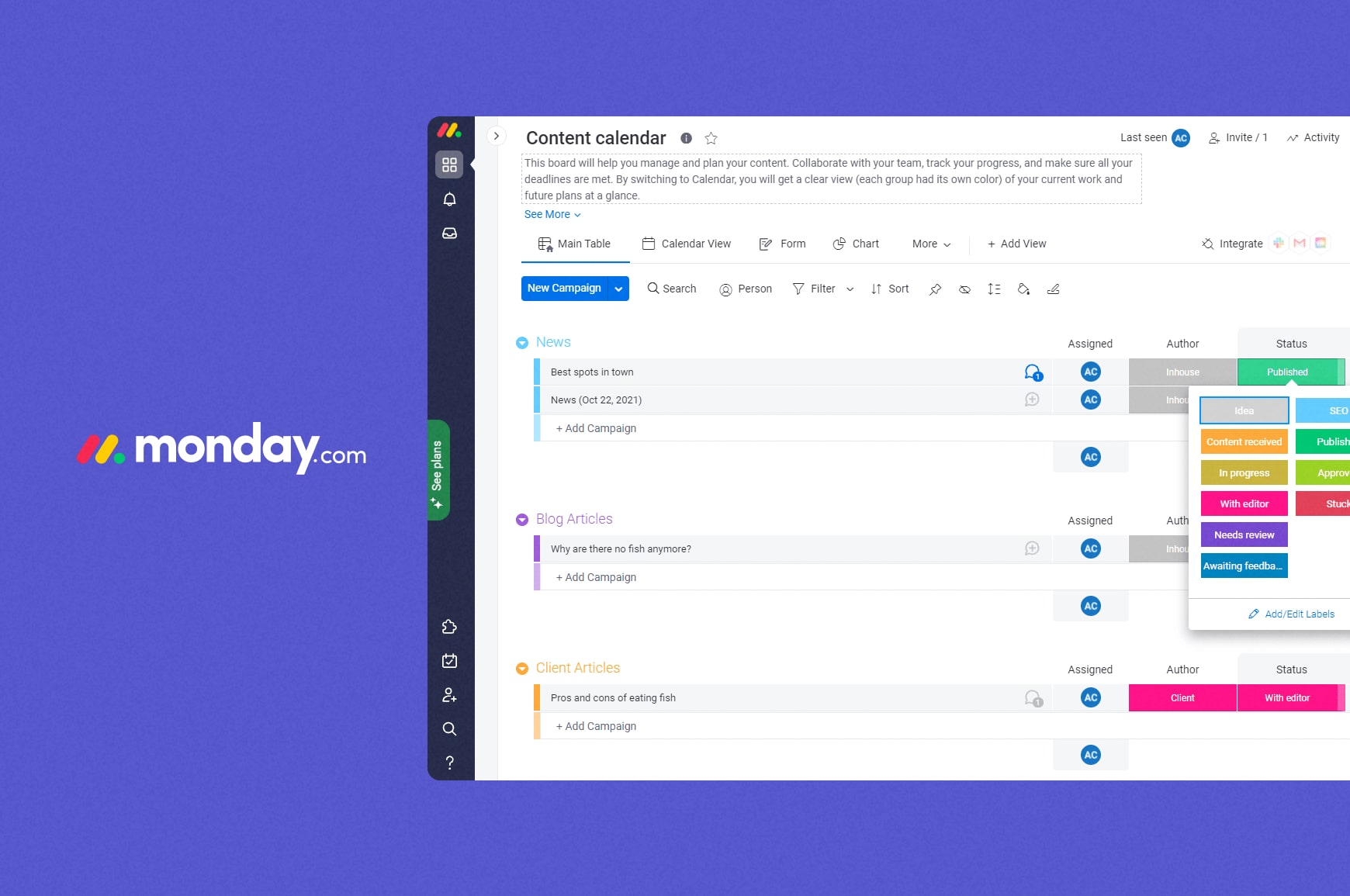
Rating: ⭐⭐⭐⭐½ — Adaptable work management for teams juggling complex workflows
Overview:
Monday.com is a strong choice for large, cross-functional teams that need a unified, transparent view of all projects and data, complete with real-time dashboards and extensive integrations. They call it the Work OS for a reason.
Highly visual, no-code customization lets teams create workflows for any process — from project planning and content workflows to marketing campaigns and HR onboarding — on flexible boards with custom fields, tracking, timelines and task management.
Its layout helps users see how tasks relate across multiple projects, and integrations with tools like Slack, Google Drive and Microsoft apps support efficient communication. Monday.com’s workflow management tools make it a strong fit for dynamic enterprise teams.
Price: Free plan available; paid plans start at $12 per seat/month
Standout strength: Highly configurable workspace for varied team workflows
| Pros | Cons |
|---|---|
| Flexible boards and powerful automations | Set-up time required for complex boards and advanced reporting |
| Strong visualization options across projects | Limited offline functionality |
| Useful integrations | Can feel busy or overwhelming for simple projects |
ClickUp — Best all-in-one team collaboration app for complex workflows
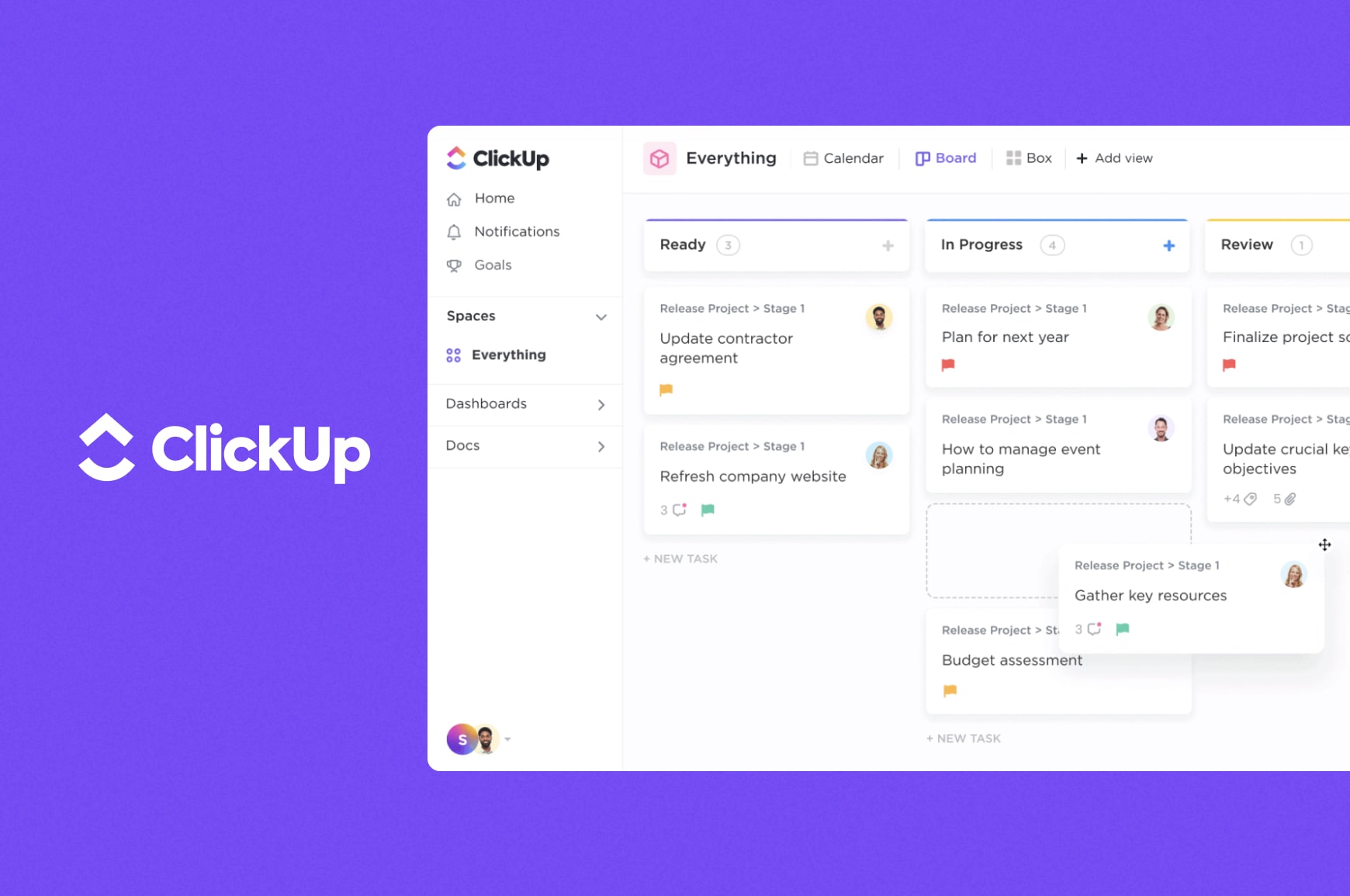
Rating: ⭐⭐⭐⭐½ — Unified tasks, docs and workflows in a single platform
Overview:
ClickUp combines task management, documents, chat, goals and time tracking in one platform. Teams can create dashboards in just a few clicks, using templates or building them from scratch. From there, teams can create tasks, organize projects, assign responsibilities and build custom workflows tailored to their processes.
Views such as lists, boards, Gantt charts and calendars give flexibility in how teams manage projects. ClickUp also supports detailed workflow diagrams, giving organizations the ability to visualize and refine task sequences.
Many teams use ClickUp to manage content creation, helping writers, designers and developers coordinate work across shared spaces.
Price: Free plan available; paid plans start at $7 per user/month
Standout strength: Highly customizable for managing tasks, projects and documentation in one place
| Pros | Cons |
|---|---|
| All-in-one functionality for complex team workflows | Push notifications can become overwhelming without configuration |
| Strong automations and flexible views | Requires guidance for optimal setup |
| Supports complex workflows | Feature bloat can create a chaotic experience for new users |
| Occasional performance slowdowns |
Slickplan — Best collaboration tool for website planning
Rating: ⭐⭐⭐⭐⭐ — Structured website planning meets real-time teamwork
Overview:
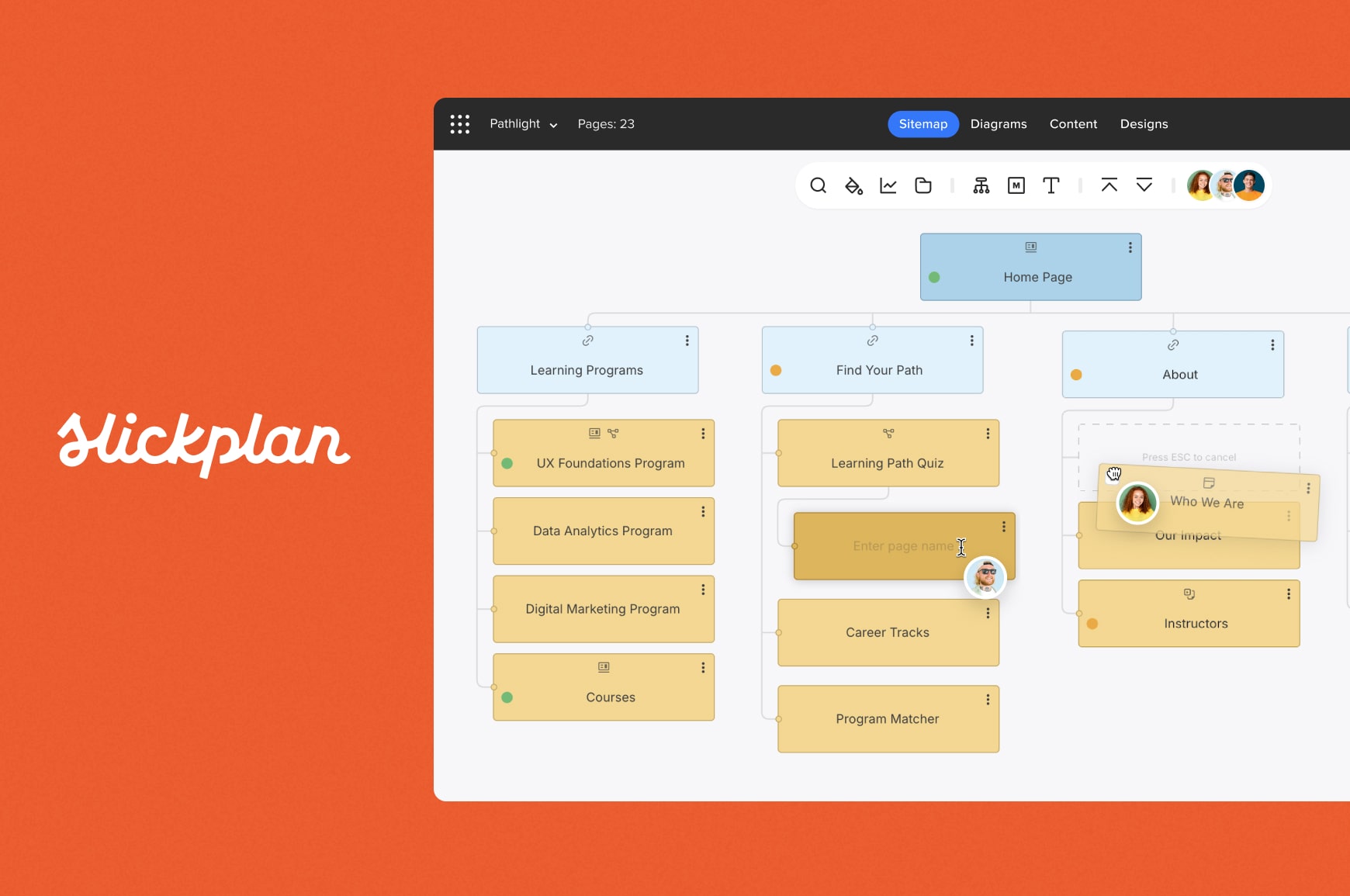
Slickplan brings clarity to complex website projects, helping teams produce organized, production-ready deliverables. Instead of jumping between documents, spreadsheets and generic diagram tools, teams can structure navigation with AI, map user journeys, create CMS-ready content and review designs in one connected workspace.
Drag-and-drop editing and real-time collaboration keep strategy, UX and content teams aligned from early planning through production — reducing the resource loss and delays that come from switching tools mid-workflow. Teams can visualize processes with workflow diagrams and perfect journeys with user story mapping.
Content planning in Slickplan provides a shared space to build structured, CMS-ready content, manage SEO and refine copy with inline commenting and suggestive editing. The result is faster approvals, fewer revision cycles and a more predictable path from kickoff to handoff.
Price: 14-day free trial; paid plans start at $10.79 per user/month
Standout strength: Unified planning for navigation, content, user flows and Figma-integrated design review in a single hub
| Pros | Cons |
|---|---|
| All-in-one website planning hub | Focused specifically on site-related work |
| Drag-and-drop workflow tools | Not a general project management suite |
| Great for cross-team content and UX collaboration | Best value when used across all website planning phases, not as a general project management suite |
| AI sitemap assistant for generating site structures |
Zoom Workplace – Best video-first communication tool

Rating: ⭐⭐⭐⭐ — High-quality meetings with integrated team chat
Overview:
Zoom Workplace extends Zoom’s well-known meeting functionality with integrated team chat, whiteboarding, screen sharing and webinar tools. As expected, it offers Zoom’s signature high-quality video collaboration, plus breakout rooms, meeting recordings and AI-generated summaries.
For distributed teams that rely on synchronous communication, Zoom Workplace is especially strong for project collaboration. Screen sharing, content annotation and visual collaboration support everything from quick team check-ins to formal client presentations.
Zoom also integrates with popular productivity apps, helping teams connect meetings with their existing workflows.
Price: Free plan available; paid plans start at $13.33 per user/month
Standout strength: Industry-leading video communication paired with integrated team chat
| Pros | Cons |
|---|---|
| Exceptional video quality | Less robust for task management |
| Great for remote and hybrid meetings | Chat and collaboration features are lighter than dedicated platforms |
| AI meeting summaries | Free plan limits meetings to 40 minutes |
Google Workspace — Best collaboration software for communication and content
Rating: ⭐⭐⭐⭐⭐ — Real-time editing and simple team communication
Overview:
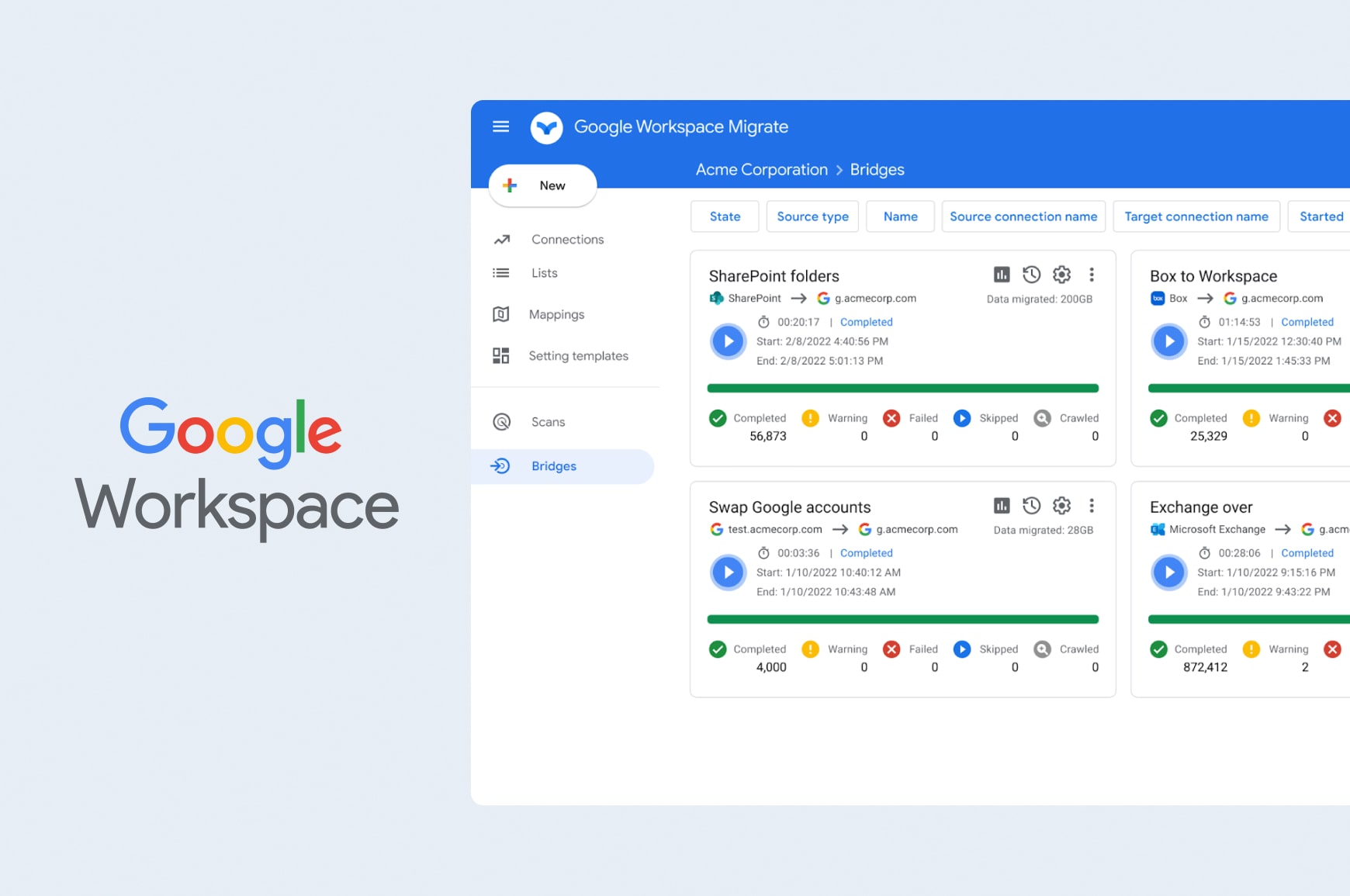
Google Workspace enables real-time collaboration through Google Docs, Sheets, Slides and Drive. Teams can co-edit documents, leave comments, tag colleagues and store files securely in shared drives. Premium AI tools like Gemini and NotebookLM help teams work faster and streamline projects.
Tight integration with Gmail, Google Calendar and Google Meet supports efficient communication and scheduling. Teams working across content, design and development often rely on Google Workspace for content collaboration and faster editing cycles.
Google Drive syncs across devices, helping teams access files and manage tasks from anywhere.
Price: Plans start at $7 per user/month; no traditional free plan (Google personal accounts remain free)
Standout strength: Seamless real-time document collaboration
| Pros | Cons |
|---|---|
| Extremely intuitive and easy for teams to use | Limited advanced project management features |
| Real-time editing, suggestions and comments | No free plan |
| Cross-device access | Advanced admin controls only available in higher-tier plans |
Miro — Best visual collaboration platform for ideation and planning
Rating: ⭐⭐⭐⭐⭐ — Visual thinking and team planning in one place
Overview:
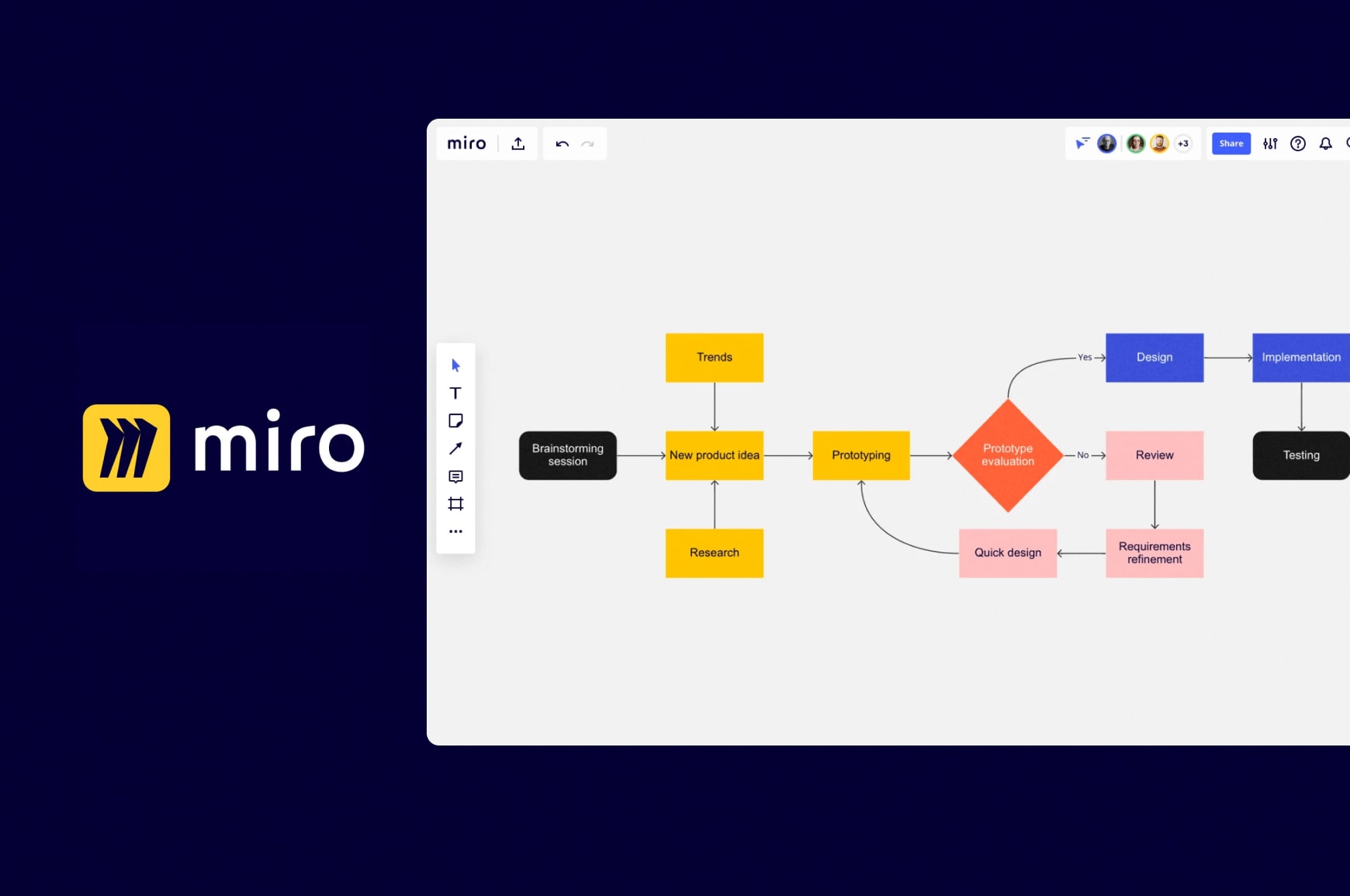
Miro gives teams a flexible, infinite canvas for brainstorming, mapping ideas and shaping strategy. It’s used for everything from early-stage ideation to structured planning to wireflows , offering templates for workshops, product discovery, design sprints and more, with over 7,000 available.
Real-time drag-and-drop collaboration and AI tools make it easy for teams to sketch concepts, cluster ideas and align quickly. Miro offers interactive screen recordings for asynchronous teams, as well as 250+ integrations for flexible workflows.
It’s an adaptable space for connecting ideas, research and decisions in one place. Teams use it to move from exploration to execution without losing context.
Price: Free plan available; paid plans start at $8 per user/month
Standout strength: Extremely versatile visual collaboration for teams of all types
| Pros | Cons |
|---|---|
| Great for ideation and planning | Requires structured facilitation for large groups |
| Powerful templates | Large canvases may load slowly |
| Strong for remote workshops | Limited task management tools |
TimeCamp – Best collaboration app for time tracking and workflow efficiency
Rating: ⭐⭐⭐½ — Time tracking and productivity insights for clearer team workflow management
Overview:
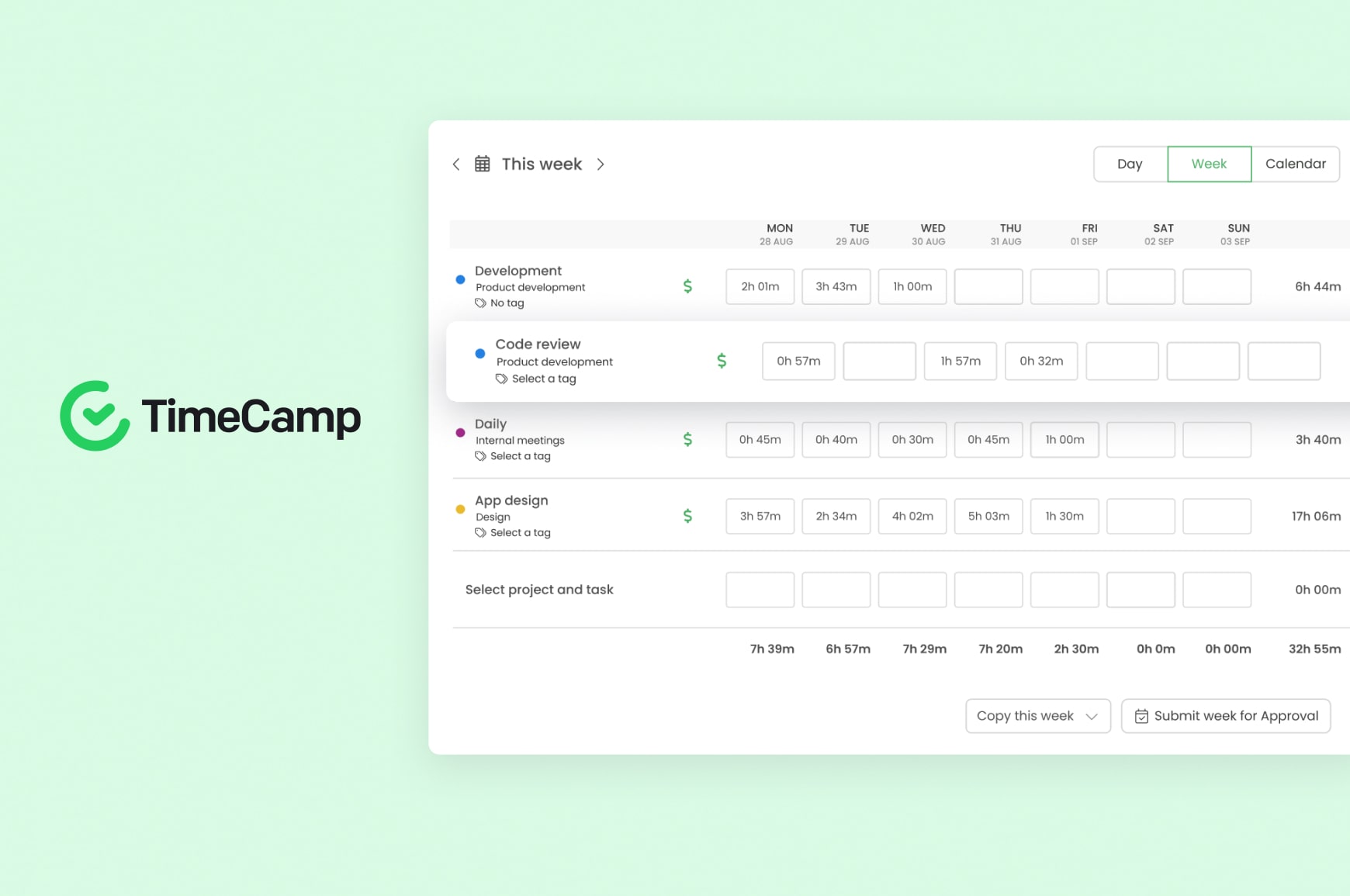
TimeCamp adds a critical layer to team collaboration by showing how time is spent across tasks, projects and applications. Automatic tracking reduces manual entry and gives teams visibility into billable work, budgets and attendance.
While many collaboration tools focus on communication and task creation, TimeCamp reveals whether workflows are actually efficient. This helps teams streamline processes, improve accountability and stay on schedule.
Integrations with tools like Asana, ClickUp, Trello, Slack and accounting platforms make it easy to blend time tracking with existing collaboration and project management workflows.
Price: Free trial available; paid plans start at $2.99 per user/month
Standout strength: Accurate, automated time tracking that enhances productivity and project visibility
| Pros | Cons |
|---|---|
| Automatic time tracking reduces manual work for teams | Not a full communication or documentation platform |
| Strong reporting and invoicing tools | Limited collaboration features beyond time tracking |
| Integrates with major collaboration tools | Occasional time tracking errors |
Quickbase — Best for managing complex workflows across teams and systems
Rating: ⭐⭐⭐⭐½ — Workflow-driven collaboration for complex, cross-functional teams
Overview:
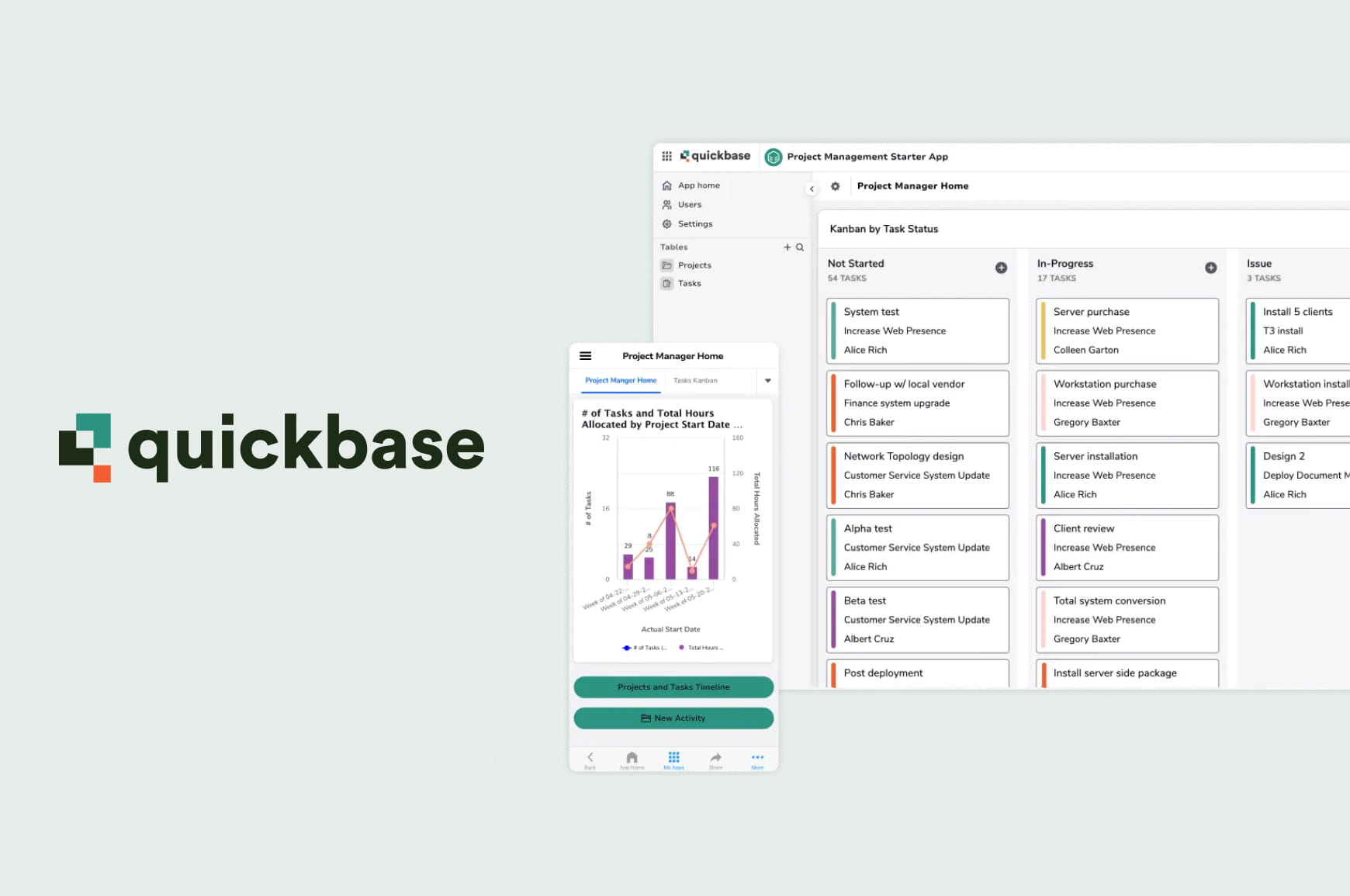
Quickbase is built for teams that need more than just messaging and task tracking. It brings projects, data and workflows into a single connected platform, helping teams coordinate work across departments without relying on disconnected tools.
Instead of managing tasks in isolation, teams can automate workflows, track dependencies and maintain real-time visibility across projects, resources and timelines. This makes it especially effective for organizations handling complex operations where multiple teams need to stay aligned.
With no-code customization, Quickbase adapts to how teams actually work, allowing them to build and refine workflows without heavy technical overhead. The result is fewer bottlenecks, faster handoffs and more predictable project execution.
Price: Custom pricing based on team and use case
Standout strength: Centralizing projects, processes and data into one unified workflow system
| Pros | Cons |
|---|---|
| Excellent for managing complex, multi-team workflows | More robust than needed for simple collaboration use cases |
| No-code customization for building tailored workflows | Setup requires initial planning to get full value |
| Strong visibility across projects, data and processes | Pricing not publicly transparent |
Tivazo — Time tracking and productivity insights for teams
Rating: ⭐⭐⭐⭐ — Automated time tracking with real-time team visibility
Overview:
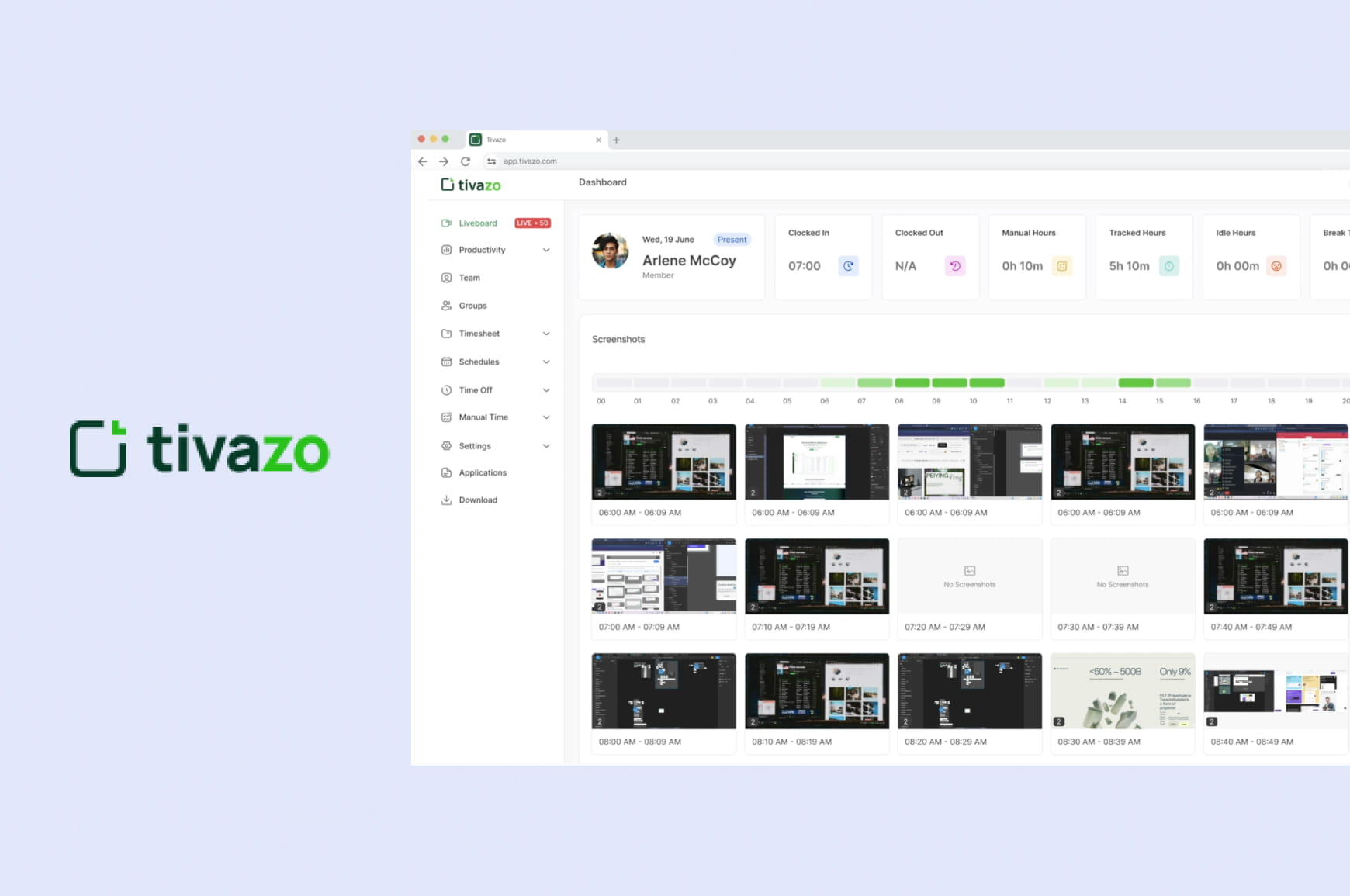
Tivazo adds a practical layer to team collaboration by automatically tracking work hours, activity levels and productivity trends across projects. Designed for remote and hybrid teams, it helps managers understand how time is spent without relying on manual reporting.
Real-time tracking, activity timelines and performance insights give teams clearer visibility into daily workflows, making it easier to identify bottlenecks, balance workloads and keep projects on schedule. Tivazo works best alongside collaboration and project management tools, providing execution-level insights that complement task coordination and communication platforms.
Price: Free plan available; paid plans scale by team size
Standout strength: Automated time tracking with real-time productivity insights
| Pros | Cons |
|---|---|
| Automatic time tracking reduces manual reporting | Not a full project management platform |
| Real-time visibility into work activity and idle time | Monitoring features may require team buy-in |
| Clear productivity and time-based performance insights | Best used alongside collaboration tools |
What to look for in a team collaboration app
Selecting the right collaboration software depends, first and foremost, on workflow needs, team size and how your organization manages projects.
Unified communication tools
Look for platforms that bring messaging, meetings, task updates and file sharing into one place while supporting both internal and external communication. This helps reduce context switching and ensures efficiency across teams.
Task management and workflow coordination
Teams need a straightforward way to create and assign tasks, track progress and keep projects organized. Platforms that support drag-and-drop organization, custom fields and multiple ways to visualize project timelines offer a clear advantage.
Document sharing and real-time collaboration
Tools that integrate file storage and document editing make it easier to collaborate on content, proposals and internal documentation without switching between multiple apps. Particularly important for teams focused on content management strategy.
Workflow visualization and process-mapping support
Platforms that support visual planning — including process mapping tools, content workflows and workflow diagrams — help teams understand task sequences and reduce complexity.
Integrations with third-party tools
Teams benefit most from collaboration apps when they connect with the productivity apps, cloud drives, task management tools and communication suites they already use.
Scalable plans
Many apps offer a free plan or free version, but growing teams often need advanced features like unlimited users, guest access, deeper file storage or workflow automation. Make sure the tool you select can grow with you so you don’t have to switch tools again later.
How to choose the right collaboration apps for teams
It all depends on how your team works day to day; different work styles benefit from different types of platforms.
Consider how your team communicates
Teams that rely heavily on asynchronous communication benefit from strong messaging tools, while synchronous teams may prioritize meeting-centered platforms, especially when navigating common hybrid work challenges.
Understand your workflow structure
If your work moves quickly or involves frequent handoffs, choose tools with clear workflow visibility. Highly technical teams may need platforms that support diagrams or more detailed task hierarchies.
Account for team roles and department needs
Cross-functional teams need shared spaces for content, design files, notes and approvals. Look for tools that coordinate these workflows without introducing extra steps.
Evaluate long-term fit
Think about how your projects evolve. Choose software that can adapt as your team grows, with features that reduce the need to migrate to a new platform later.
Best practices for implementing collaboration software
Start small and scale
Introduce the platform to a small team first, gather feedback and refine processes before expanding.
Define channels, projects and workflows clearly
Consistent naming conventions keep teams aligned and make it easier to manage projects across departments.
Automate where possible
Automations save time by reducing manual task creation and repetitive updates.
Train teams on features gradually
Introducing core features first helps drive adoption before layering in advanced functionality.
Make collaboration easier across every project
Managing projects effectively means reducing complexity, improving communication and keeping work organized so teams move in the same direction. The best collaboration apps remove roadblocks and inefficiencies, helping teams stay focused on the work instead of wondering what’s next.
Choosing the right platform brings clarity to the entire workflow and gives teams the space to do their best work together.


Plan smarter content with Slickplan
A collaborative workspace to handle all your content needs. Plan, gather and create together.
Frequently asked questions
What's the best work collaboration app?
The best work collaboration app depends on your team's size, workflow and communication needs. Tools like Slack, Microsoft Teams, Zoom Workplace, Asana and Google Workspace each excel in different areas, from messaging to project management and real-time document collaboration. The right choice offers clear communication, easy task coordination and seamless integration with the tools your team already uses.
Does Google have a team collaboration tool?
Yes. Google offers team collaboration through Google Workspace, which includes Gmail, Google Drive, Docs, Sheets, Slides, Calendar and Google Meet. Teams can co-edit documents in real time, share files securely and manage schedules in a unified workspace. Google Chat and Spaces support ongoing conversations, making Workspace an effective communication and document-centric collaboration platform for teams of all sizes.
Does Microsoft Teams have a collaboration tool?
Microsoft Teams is a full collaboration platform. It brings together chat, video meetings, screen sharing, file storage and real-time document editing through deep integration with Microsoft 365 apps like Word, Excel, PowerPoint and SharePoint. Teams also supports channels, shared workspaces and meeting recordings, making it a comprehensive hub for communication, coordination and daily teamwork.
What is team collaboration software?
Team collaboration software is a digital platform that helps groups communicate, manage tasks, share files and coordinate work in real time. These tools replace scattered emails, documents, chat threads and more with a unified workspace. Typical features include messaging, project tracking, file sharing, video meetings and workflow visibility. The goal is to help teams stay aligned, reduce friction and complete work more efficiently.
What is the best free app for team communication?
Slack, Microsoft Teams (free, non-business tier) and Discord all offer solid team communication at no cost. Slack provides organized channel messaging, Teams integrates basic chat and meetings, while Discord offers voice and text channels. Each supports file sharing and real-time conversation. The best option depends on whether your team needs structured communication, simple messaging or more community-style interaction.


 Facebook
 X
X Youtube
 LinkedIn
 Vimeo
Vimeo